Freejna admin user can create a “activity” related to a neighborhood by clicking “create activity”, then he will be redirected to the “activity” Form
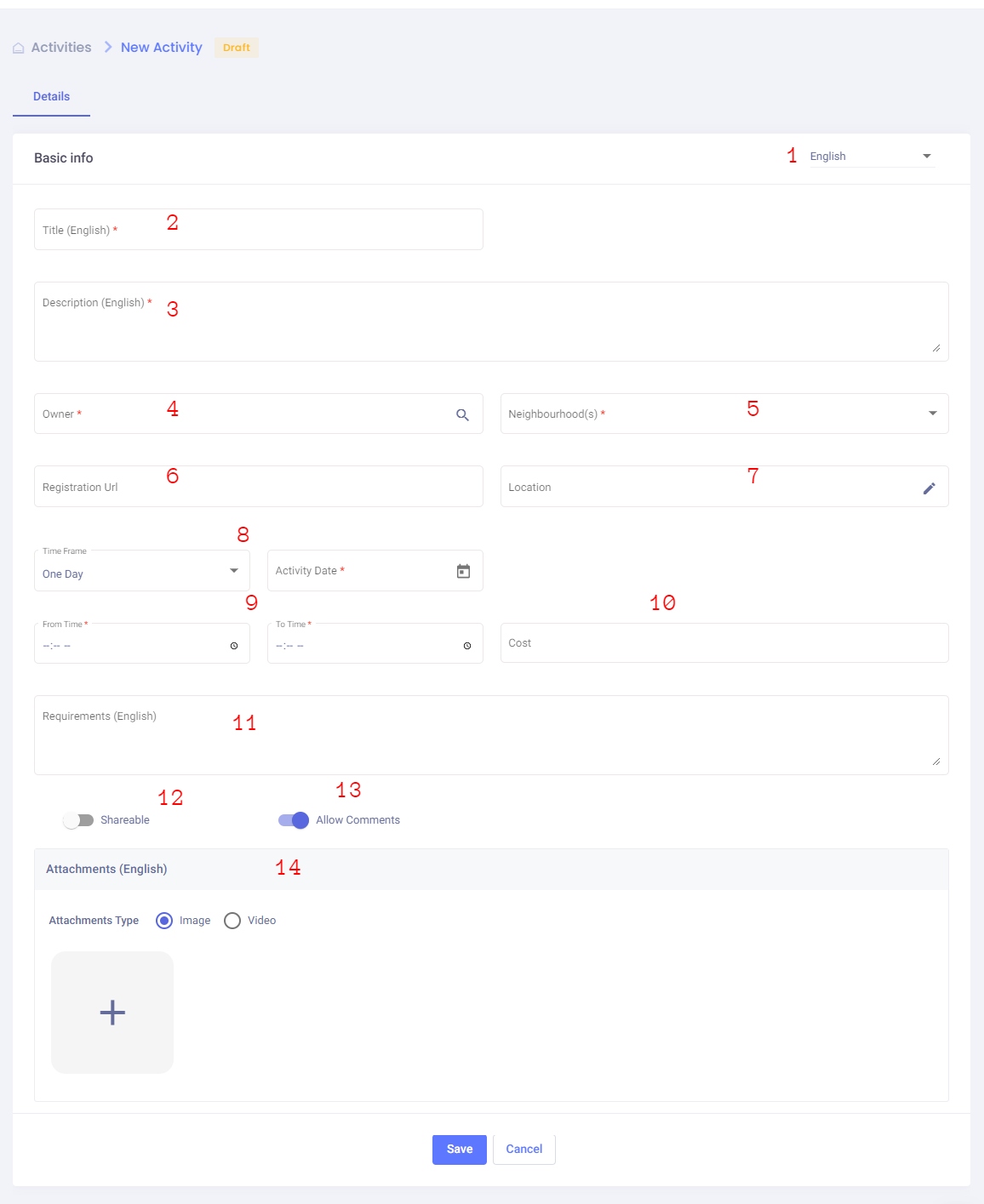
In this form the admin enters the Activity data which are:
- Admin user can switch between languages (English , Filipino , Urdu and Arabic )to fill the information in all languages (one language must be filled)
- Title (required) : the admin can add title based on selected language in option1
- Description (required) : the admin can add description based on selected language in option1
- Owner (required) : the organization that owns the activity
- Neighborhood(s) (required) : which is a dropdown lists all of the neighborhoods where the user can select one or more to publish card in.
- Registration URL (optional): the activity link, where user can click in the App to see more details about it
- Location (optional): allow admin to add the place where the “Activity ” happens.
- Time Frame (required) : Here we have two cases
- One Day: it refers that the activity happens just for one day so user can here add an activity date

- Multiple Days: This case refers that the activity can happen for multiple dates and here the user should fill the following fields :
- Start Date (required) : the start date of an activity and it should be greater than the current date
- End Date (required) : the end date of an activity
- Occurrence Days (optional) : It is a dropdown shows a list of week days , so user can select the day(s) where the activity happen

- One Day: it refers that the activity happens just for one day so user can here add an activity date
- From Time (required) : the time where the activity starts & To Time (required) : the time where the activity ends
- Cost (optional) : the cost of an activity in AED
- Requirements (optional) : admin user can add the activity requirement if available
- Shareable (optional) : admin user can control the shareability of the activity
- Allow comments (optional) : admin user can control the Allowing comments of the activity
- Attachments (required) : the admin must add the an attachment (image or video) based on selected language in option1 to the activity :
- uploading an image ( user can upload one image )

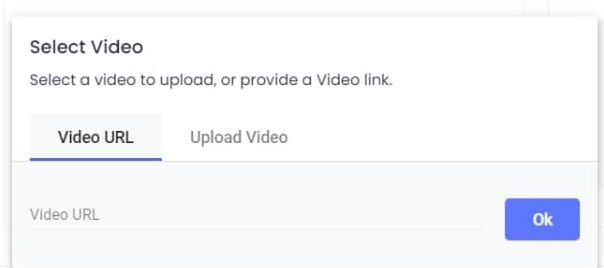
- adding video
- adding YouTube URL
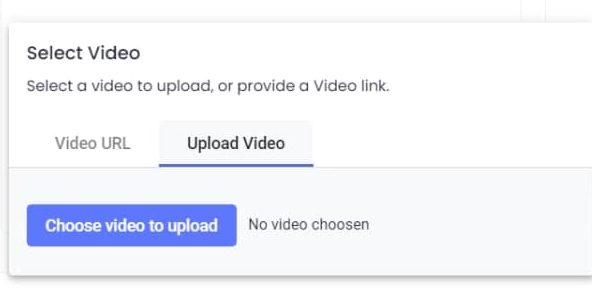
- uploading video
 After save card change admin can display video and modify it speed
- adding YouTube URL
- uploading an image ( user can upload one image )

After the admin user saves the information, the status turns into draft, and in this case he can modify the value of any field.
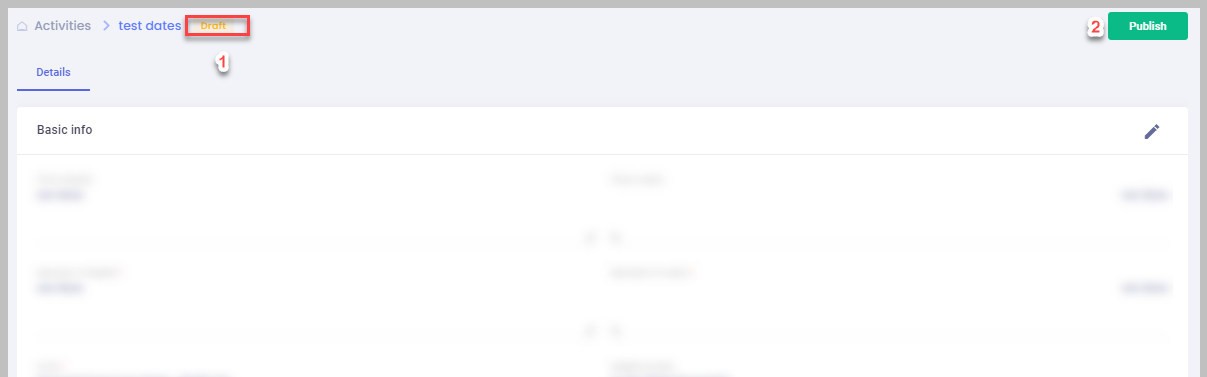
The admin user can publish the card to appear in the mobile App if the date of publication is greater than today’s date and the status then changes to Published.
The admin user can archive the card and status will be archived, accordingly the card will not appear in the App again.
There are two ways for admin to publish the card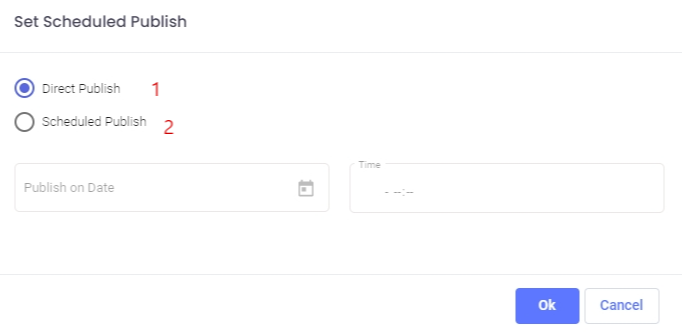
-
- Direct publish: this option will directly publish the card and it will appear for the App user
- in case user choose this option the card directly publishes and can then convert it to draft.
- Scheduled publish :this option give admin the ability to schedule the card based on specific time range
- if admin decide to schedule publish. edit or cancel scheduled publish button appear
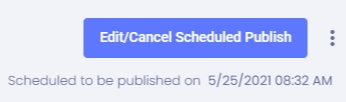
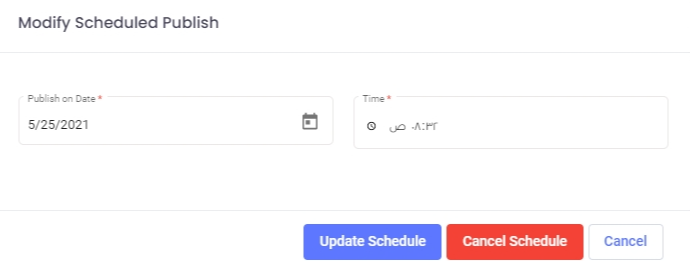
- Admin can either change schedule time and update or cancel schedule publish which return him to previous publish button
- if admin decide to schedule publish. edit or cancel scheduled publish button appear
- Direct publish: this option will directly publish the card and it will appear for the App user
- In case that the user marks the activity as an archive then it wont appear in the App nor in the activity list.
- User can only access the archived record from the Entry status filter in the activity list.
if published card end date expired, an extend expiry date button appear which help admin to extend card time
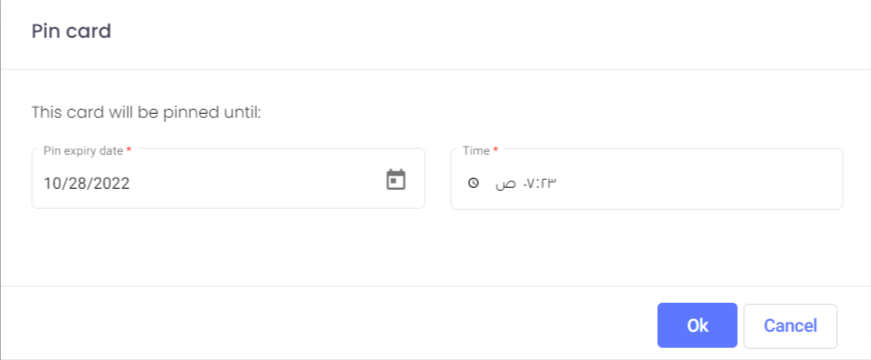
also, card can be pinned in app timeline by using this feature, Admin can fully control the date and time for pinning the card
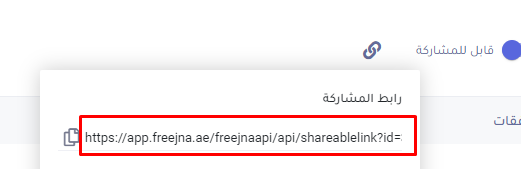
After creation if the activity is shareable then a generation link will be created so the admin can share the link with others to open it in the App