Freejna admin user can create a “Contest” related to a neighborhood by clicking “Create Contest”, then he will be redirected to the “Contest” Form
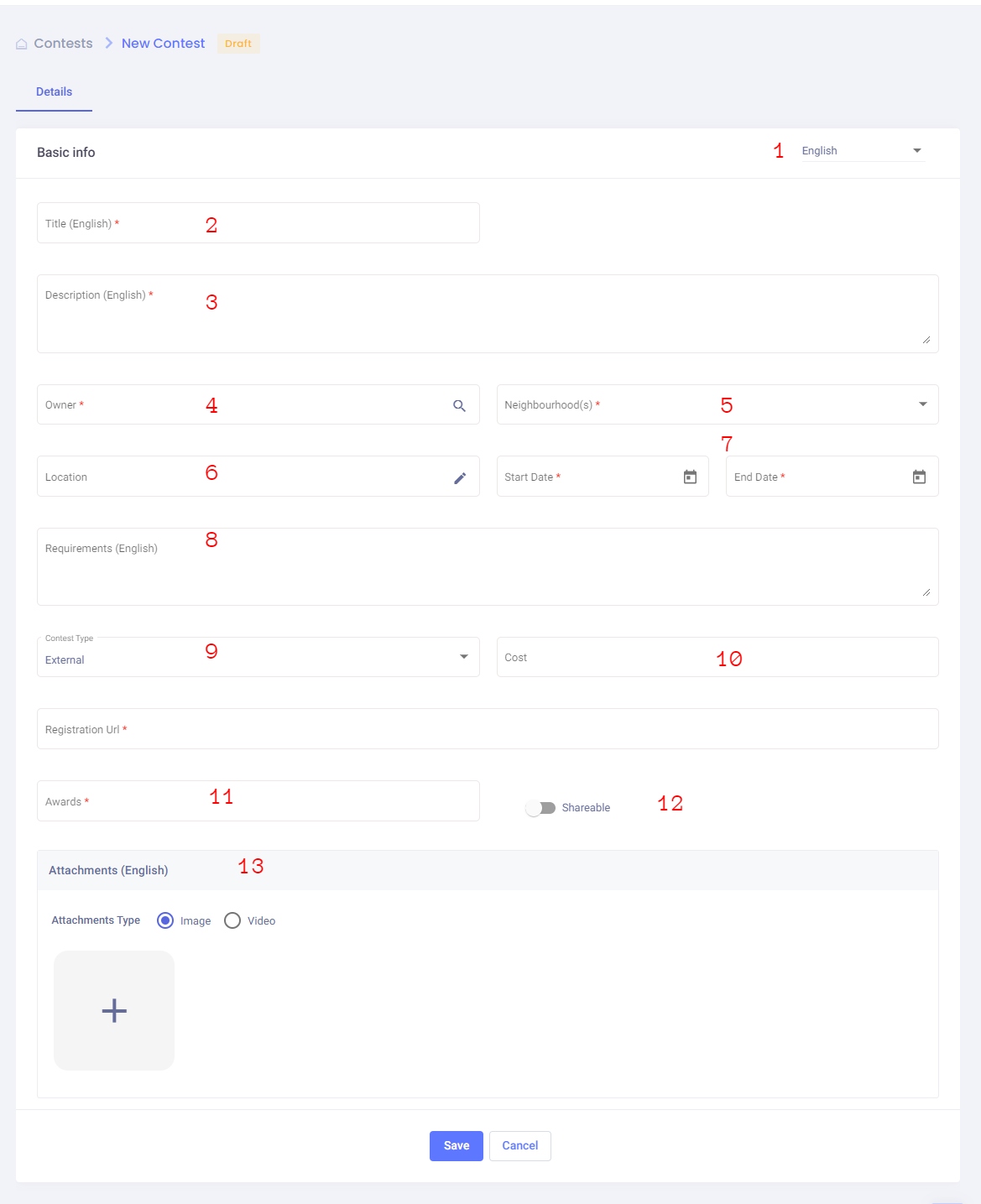
In this form the admin enters the contest data which are:
- Admin user can switch between languages (English , Filipino , Urdu and Arabic )to fill the information in all languages (one language must be filled)
- Title (required) : the admin can add title based on selected language in option1
- Description (required) : the admin can add description based on selected language in option1
- Owner (required) : the organization that owns the contest
- Neighborhood(s) (required) : which is a dropdown lists all of the neighborhoods where the user can select one or more to publish card in.
- Location (optional) : allow admin to add the place where the “contest ” happens.
- From Time (required) : the time where the contest starts & To Time (required) : the time where the contest ends
- Requirements (optional) : admin user can adds the Arabic contest requirement if available
- Contest type (required)
- External: it is a contest that is being managed outside Freejna , admin panel user can add the registration link of the contest in the Registration URL Field

- Internal: it is a contest that is being managed inside Freejna admin panel , admin panel user can add the following contests info:

- Contest question (required) : the admin can add description based on selected language in option1
- Contests options (required) : which are minimum 3 options and maximum 5 options
- Add options (optional) : Admin can add (2 additional) using the contests add option
- Admin must select the correct answer
- External: it is a contest that is being managed outside Freejna , admin panel user can add the registration link of the contest in the Registration URL Field
- Cost (optional) : the cost of a contest in AED
- Contest awards (required) : the award of a contest.
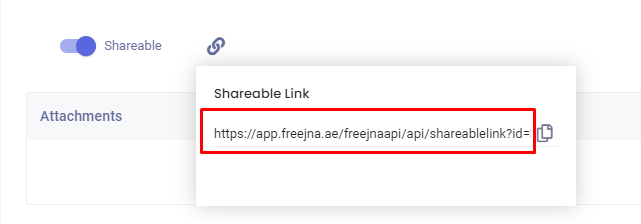
- Shareable (optional) : admin user can control the shareability of the contest.
- Attachments (required) : the admin must add the an attachment (image or video) based on selected language in option1 to the contest :
- uploading an image ( user can upload one image )

-
- adding video
- adding YouTube URL

- uploading video
 After save card change admin can display video and modify it speed
- adding YouTube URL
- adding video
- uploading an image ( user can upload one image )

By clicking save button the contest status saved as a draft and in this case admin user can edit the card.

Admin user can publish the card directly to be viewed by App users, published card status will be set to “Published”.
Admin user can archive and contest to be hided from contest list and will not appear for App user.
There are two ways for admin to publish the card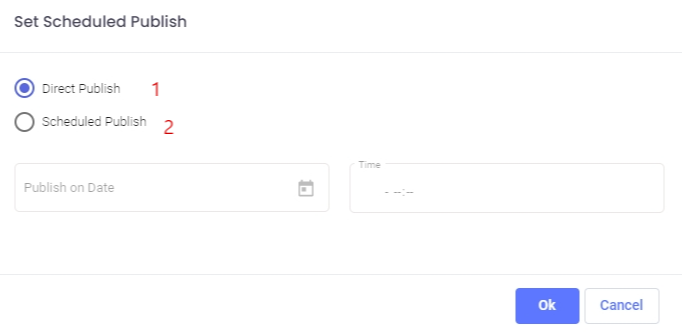
-
- Direct publish: this option will directly publish the card and it will appear for the App user
- in case user choose this option the card directly publishes and can then convert it to draft.
- Scheduled publish :this option give admin the ability to schedule the card based on specific time range
- if admin decide to schedule publish. edit or cancel scheduled publish button appear
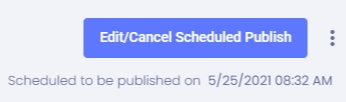
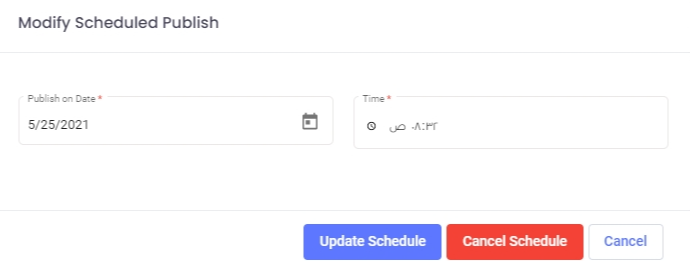
- Admin can either change schedule time and update or cancel schedule publish which return him to previous publish button
- if admin decide to schedule publish. edit or cancel scheduled publish button appear
- Direct publish: this option will directly publish the card and it will appear for the App user
- In case that the user marks the contest as an archive then it wont appear in the App nor in the contest list.
- User can only access the archived record from the Entry status filter in the contest list.
- also, card can be pinned in app timeline by using this feature, Admin can fully control the date and time for pinning the card
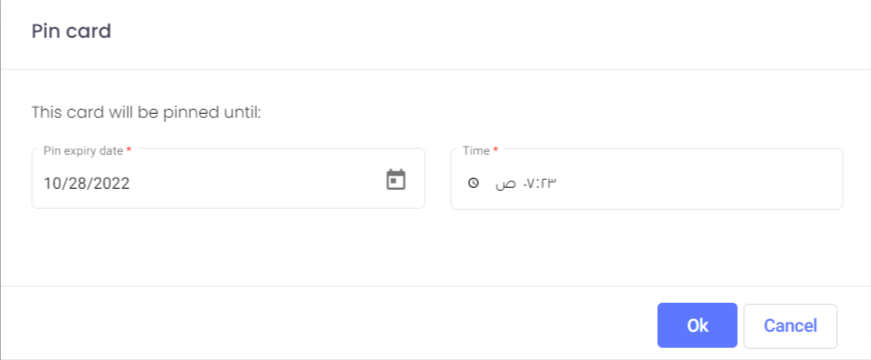
if published card end date expired. an extend expiry date button appear which help admin to extend card time
In case the card type is internal then the admin has the option to export answers in the CSV format

When the contest expired then the admin can create a winner card related by clicking on “create a winner card”
In case the contest is internal then : the admin has the option to choose the number of winners (maximum is 3)
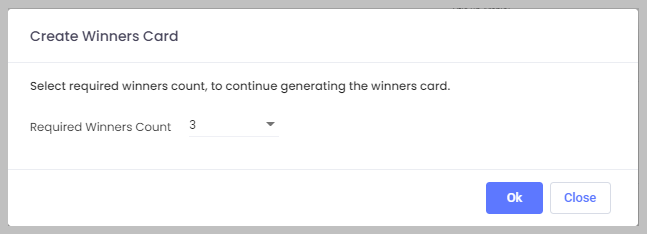
After choosing the winners number the admin has the option to choose the award for each winner or reselect the winners randomly again , after that the admin can select the shareable option.
the default status of the winner card is draft
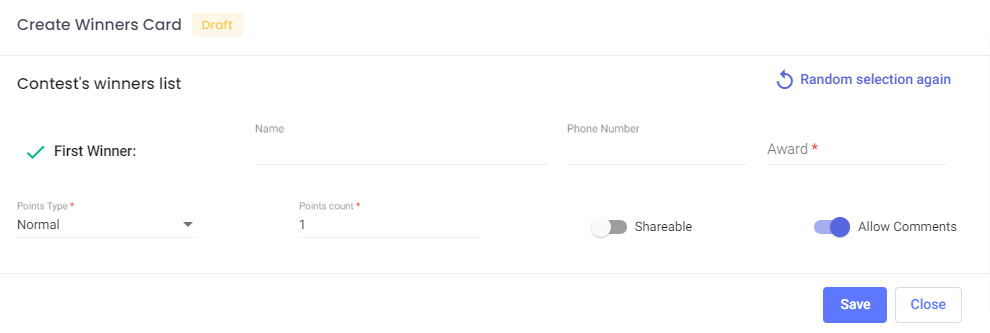
In case the contest is external then :the admin has the option to choose the number of winners (minimum 1 and maximum is 3) by adding their names manually and the award
the default status of the winner card is draft

When admin click save then the winner card is being added to the related (internal , external) contest card where admin can edit the winner card or publish it

After publishing the winner card, it appears in the App and then the Winner card status is published
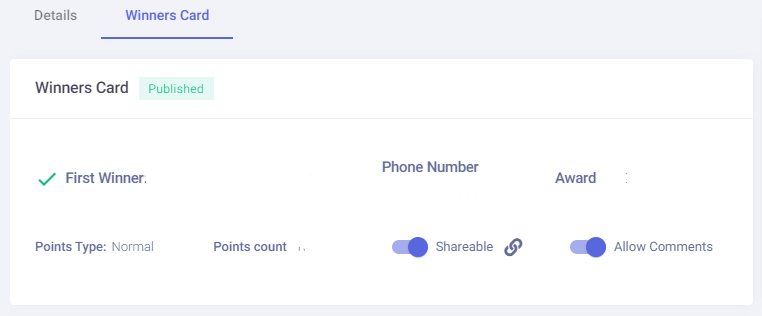
After Creation if the contest is shareable then a generation link will be created so the admin can share the link with others to open it in the App