Freejna admin can create two Poll types ( Neighborhood, Project) and in both cases the admin can create the poll by pressing the “New Poll”, then he will be redirected to the “Poll Management” form which contains two tabs.
The first section
Basic Info
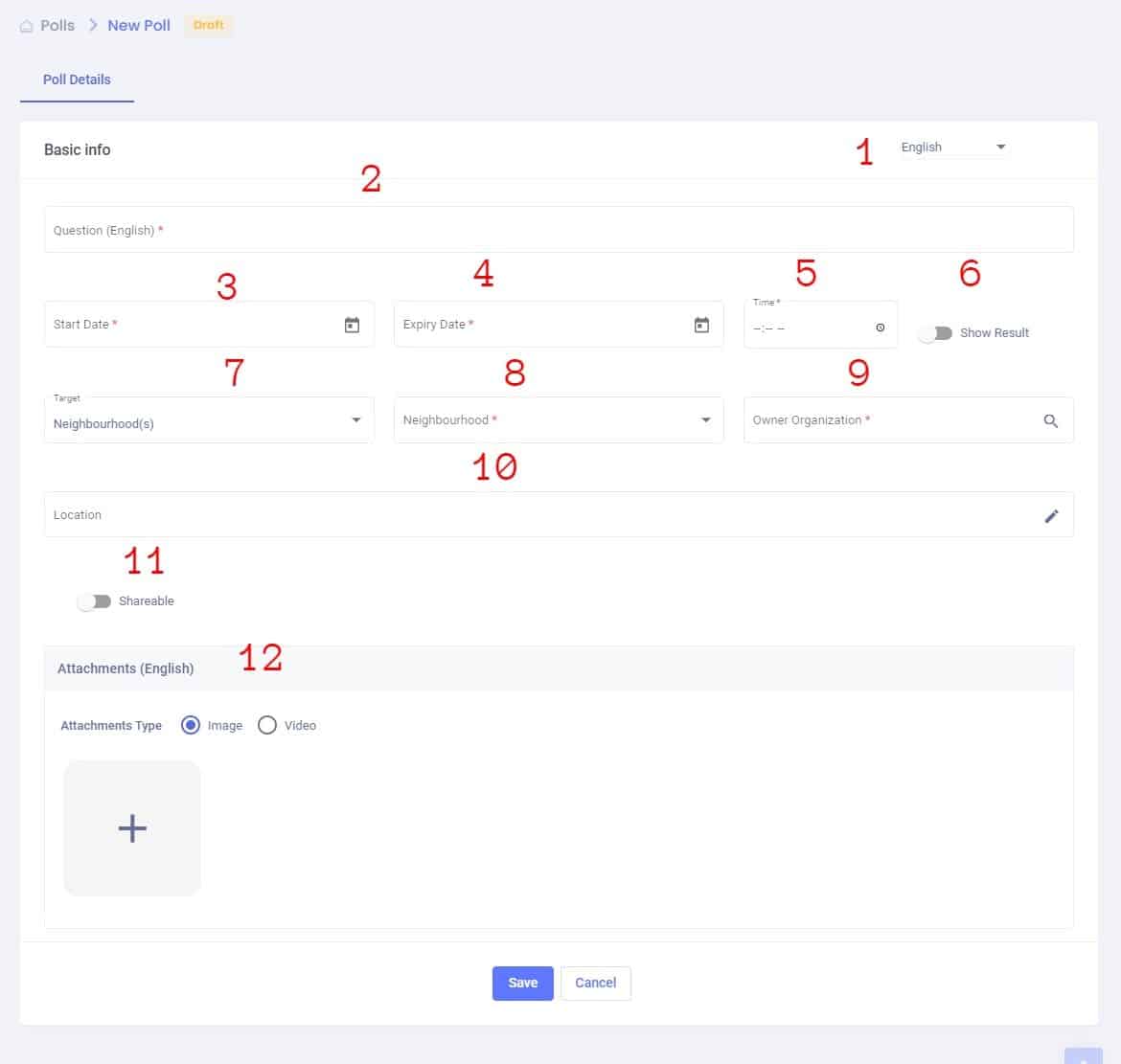
The form of data like the following:
- Admin user can switch between languages (English , Filipino , Urdu and Arabic )to fill the information in all languages (one language must be fill)
- Poll Question (Required) : The admin can add question based on selected language in option1
- Start Date (Required): the date when the poll would be published in the app.
- Expiry Date (Required): when the poll would be expired.
- Time (Required): the exact time of publishing the poll in the app.
- Show Results: the admin can allow users to show results after the poll expires.
- 8.9Target (Required): the poll can be added to neighborhoods or to projects
- Poll for neighborhoods: when creating this poll it would be added to the neighborhood timeline. when the admin selects the target to be equals to the neighborhood; then 2 fields appear
- List of neighborhoods where the poll can appear in the app and the admin can select one of them
- Owner where the admin searches for the Organization name that the poll belongs to, in case the admin wants to delete the owner he clicks the (x) sign
-
- Poll for Projects: when creating a project poll it would be added to the project timeline and to the neighborhood timeline. when the admin select the target equals to project, then a new field appears:
- Project: where the admin searches for a project name.
- Poll for neighborhoods: when creating this poll it would be added to the neighborhood timeline. when the admin selects the target to be equals to the neighborhood; then 2 fields appear
10. Location (optional): admin can add a poll location
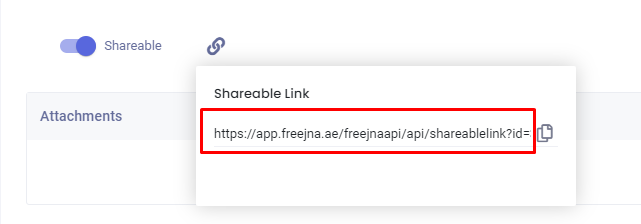
11. Shareable(optional) : admin user can control the share-ability of the Poll
12. Attachments (optional) : the admin can add the an attachment(image or video) to the poll based on selected language in option1:
- uploading an image ( user can upload one image )

- adding video
- adding YouTube URL
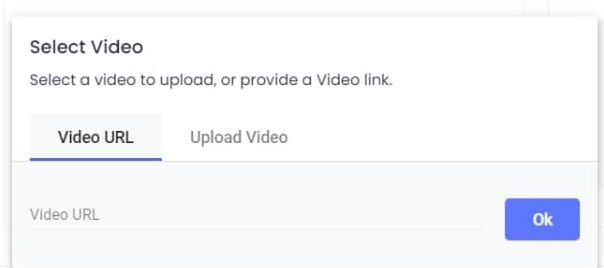
- uploading video
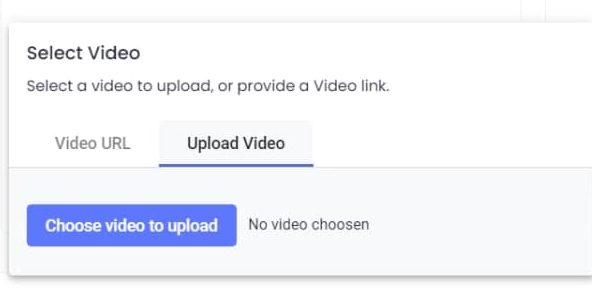
- adding YouTube URL
- The admin can press the save button to save the poll basic info and then move to the polls responses section
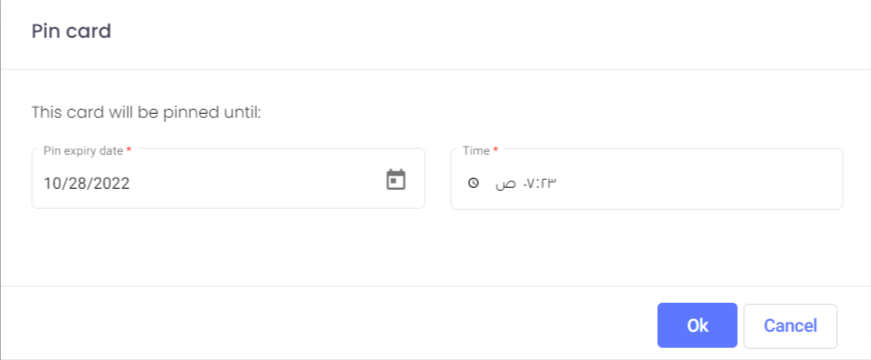
card can be pinned in app timeline by using this feature, Admin can fully control the date and time for pinning the card
The second section
Poll Responses
The admin enters the response data in this section.
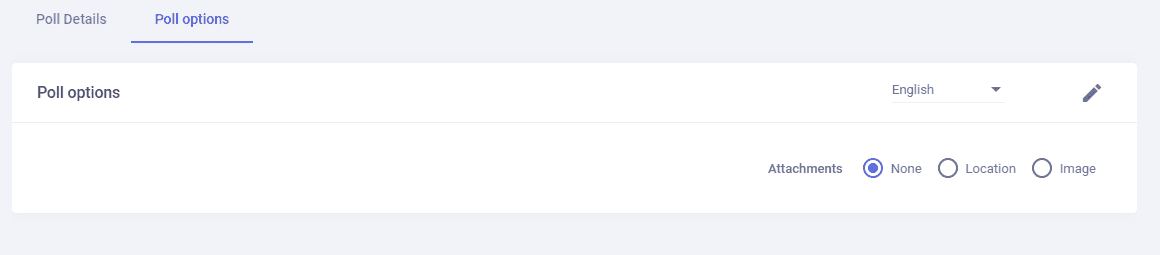
There are 3 responses options: Default, image, map
- The default cases: to display responses as text
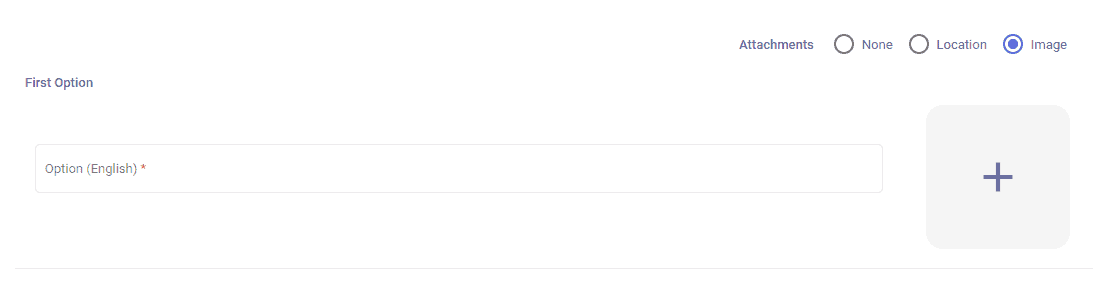
- Image: a button appears beside each option so the admin can upload an image related to each response to be displayed in the App by pressing the (+) button
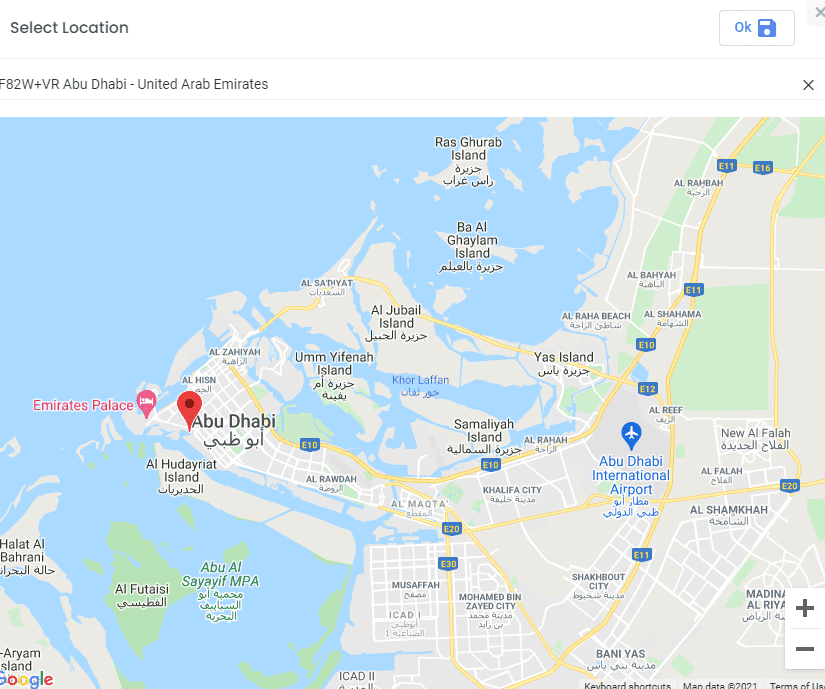
3. Map: a button appears beside each option so the admin can choose location related to each response to be displayed in the App
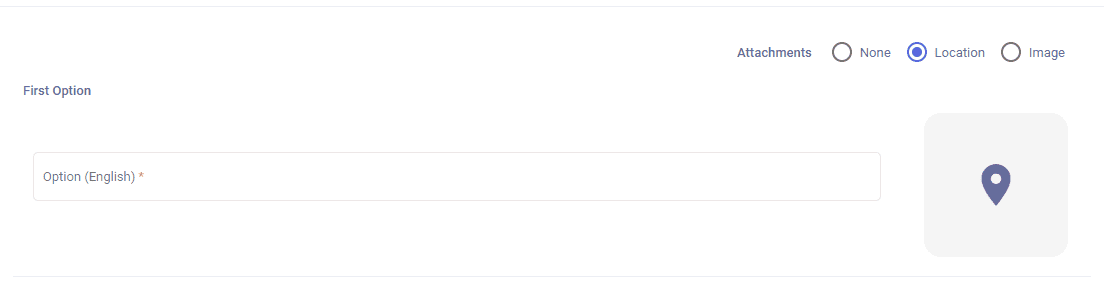
When the admin selects “Choose Location” a popup appears, and the admin searches for a location by typing its name in the search box or changing the marker position, the admin saves the location by pressing “OK”
- The admin has to add the option values in both languages Arabic and English
- The admin clicks save to save the changes; then he will be redirected to the poll edit page where he can publish or archive the poll

After saving the poll draft then a new section appears shows the poll charts
- Poll Responses ( shows the votes for each poll option)
- Poll Responses according to the freej ( shows the votes for each poll option filters according to each freej )
The default status of charts is empty
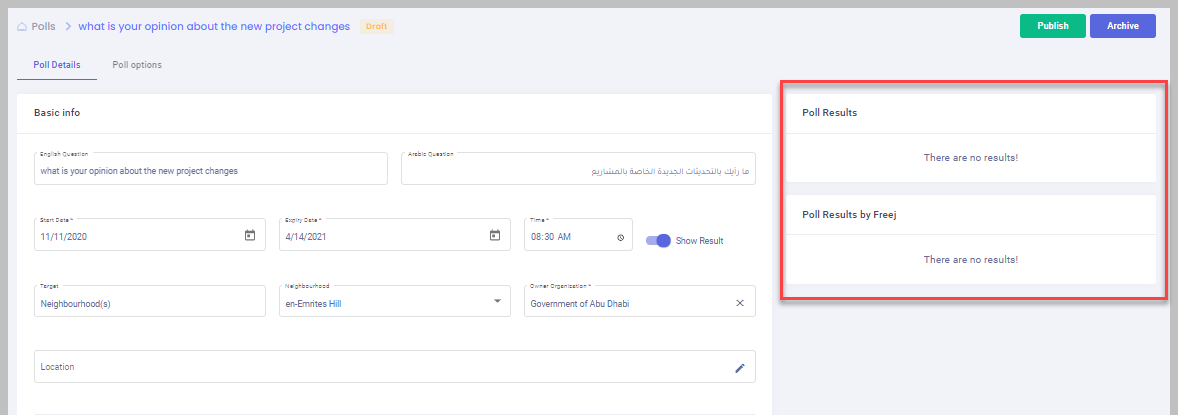
- When the admin clicks the “Publish” option, the poll status converted to published, and the Archive option would be deactivated.
- The admin can convert the poll to a Draft even when its status is Published
- The Archive option enabled when the poll expires
- The admin save the changes by clicking on save button
- The admin can back to Poll table by clicking on the back button
After Creation if the poll is shareable then a generation link would be created so the admin could share the link with others to open it in the app